EPUB to PDF Converter for E-books
This EPUB to PDF converter rebuilds your e-book as a printable PDF with selectable text, chapter bookmarks and page numbers. The book is read by your own browser and never leaves your device.
Converted on this device. Your files are never uploaded.
How it works
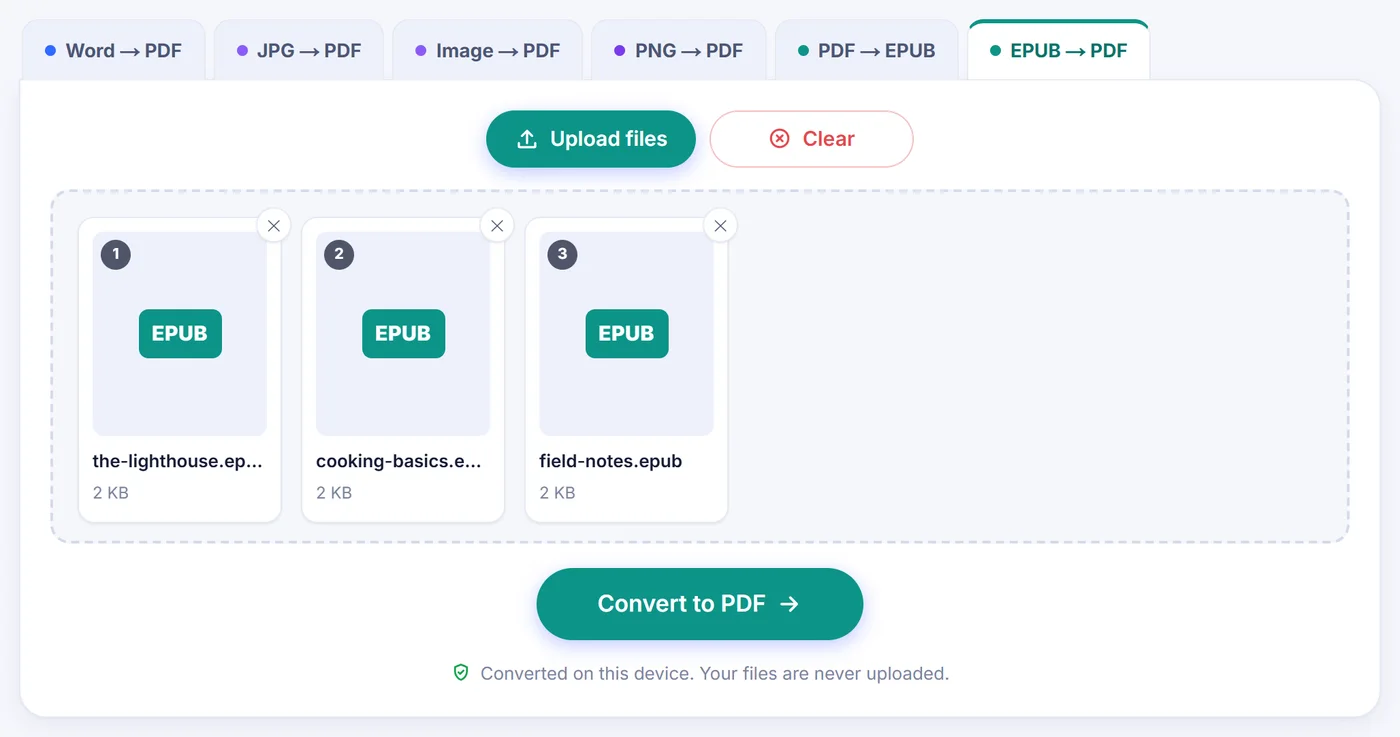
Drop in your e-book
Pick one .epub file or a stack of them (up to 20); the book is unpacked locally and its title, author, word count and cover appear in the options window.
Shape the pages
Choose a paper size, typeface, text size and margins, switch the contents page or page numbers on or off, and watch the live preview of the opening pages update.
Save the PDF
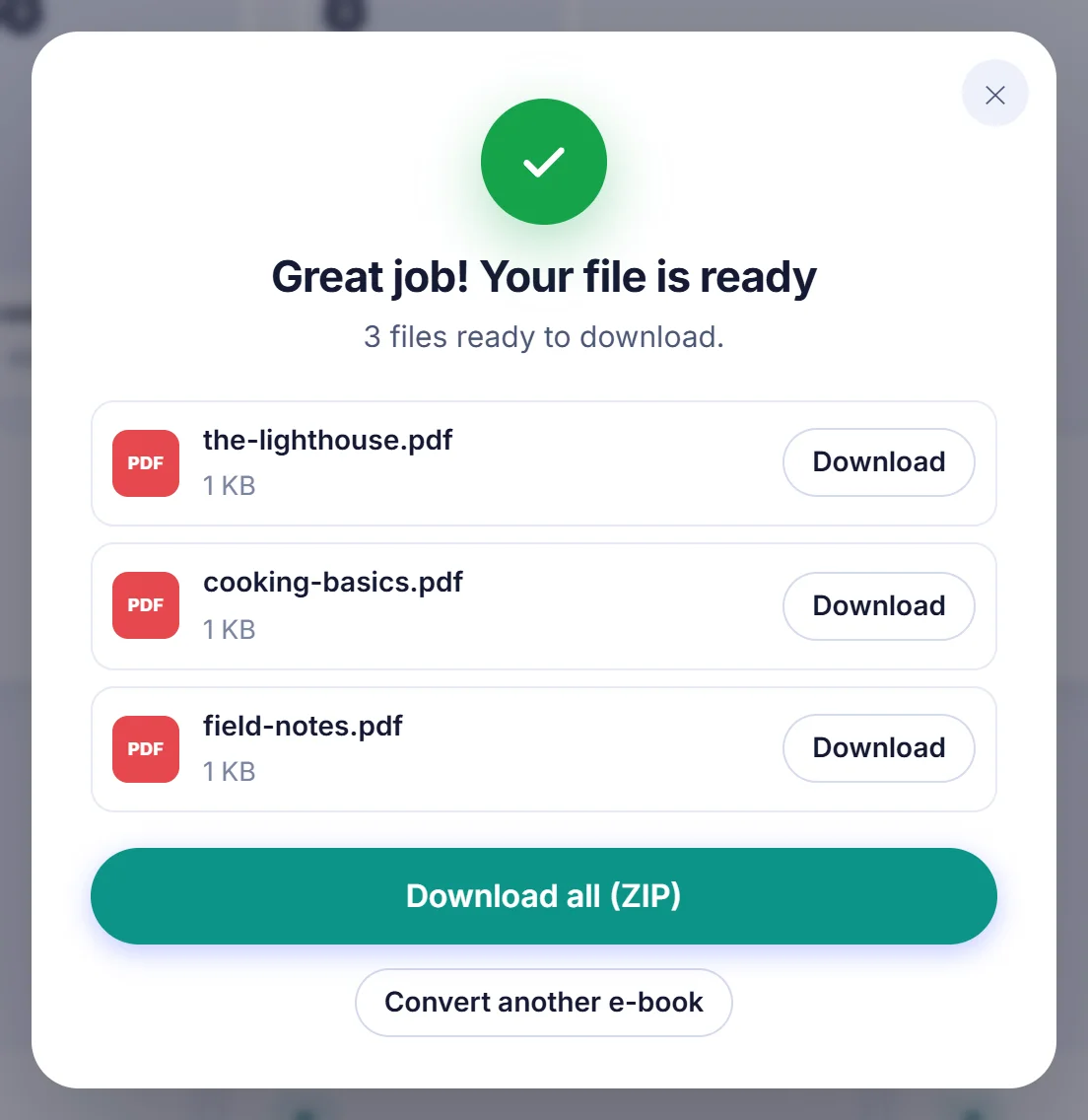
Press Convert to PDF and download the result, named after the original book; with several books, save each PDF separately or all of them in one ZIP.
Why people turn an EPUB into a PDF
EPUB is a reflowable format. The text has no fixed pages: your reader app pours it into whatever screen it has, so page 40 on a tablet may be page 112 on a phone. That is pleasant for reading in bed and annoying almost everywhere else. A teacher who wants to hand out chapter three, a student who has to cite a page number, someone who prefers to print a public-domain novel and read it with a pencil, a reviewer whose laptop has no e-book app: all of them need fixed pages, and PDF is the format every computer, printer and phone already opens.
The goal of this site is narrow. It takes the chapters stored inside the e-book and sets them again as proper pages, the way a small print shop would, instead of photographing a screen.
How the EPUB to PDF conversion works here
An EPUB is really a ZIP archive holding XHTML chapters, stylesheets, pictures and a package file that lists the reading order. When you add a book, the page opens that archive in memory, follows the reading order chapter by chapter, and turns the markup into headings, paragraphs, bold and italic words, lists, block quotes, code samples and pictures. Then it typesets everything onto PDF pages.
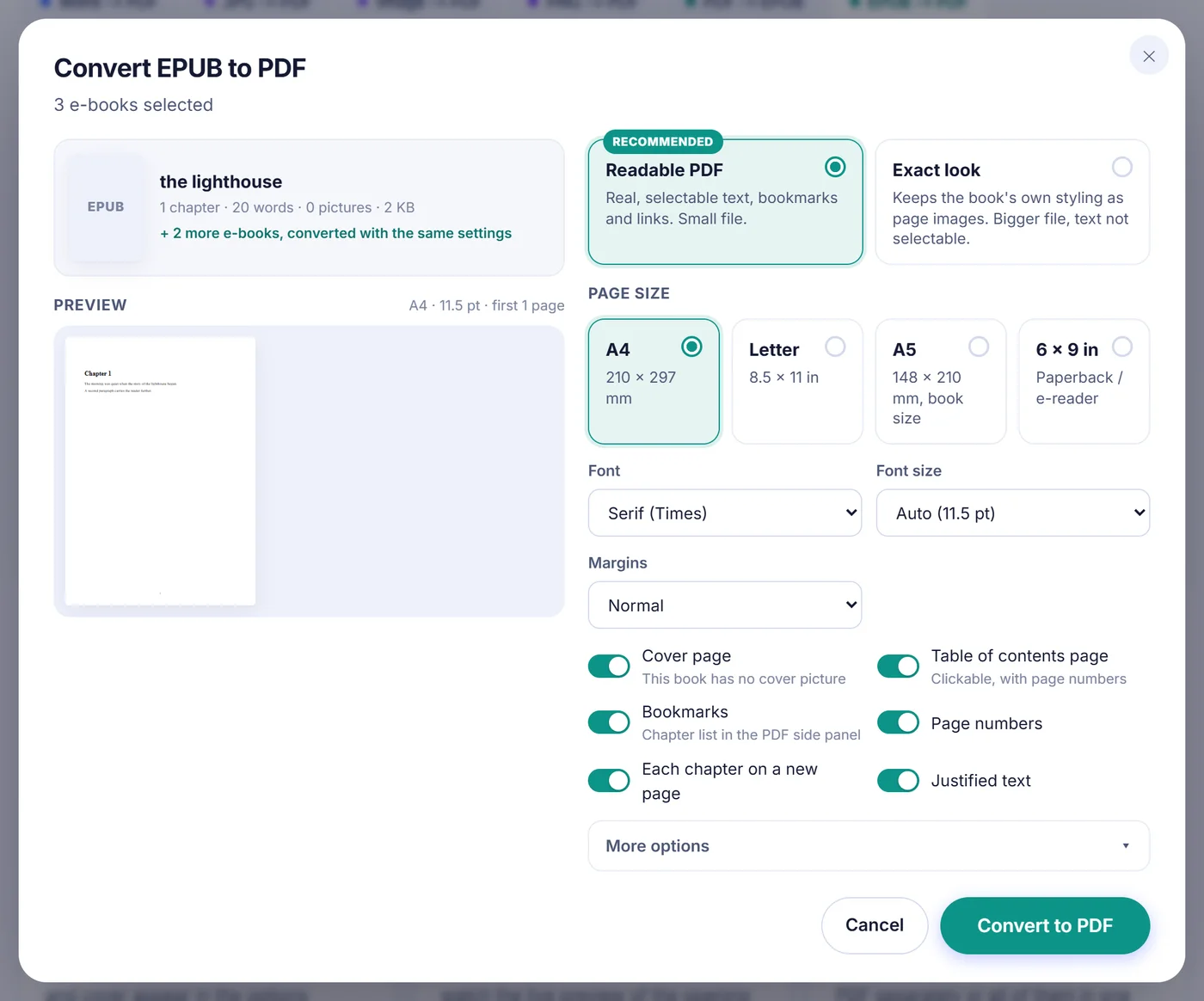
Before anything is saved you see an options window with a preview of the first pages. The choices that matter most:
- Page size: A4, US Letter, A5 (a handy book size) or 6 x 9 inches, the classic paperback and e-reader shape.
- Font: a serif face based on Times, or a sans-serif face. Size can be left on Auto (11.5 pt for A4 and Letter, 10.5 pt for the smaller formats) or set from 9 to 18 pt.
- Margins: narrow, normal or wide.
- Extras you can toggle: cover page, a contents page with clickable entries and page numbers, PDF bookmarks, page numbers, a fresh page for every chapter, and justified text.
- More options: line spacing (compact, normal, relaxed), paragraphs separated by space or indented book style, working links and footnotes, and compression for oversized pictures.
Your last settings are remembered in this browser, so a second book comes out looking like the first.
What survives the trip, and what does not
The default mode, called Readable PDF, produces genuine text. You can search it, highlight it and copy a quotation out of it, and the file stays small because words are stored as words, not as images. The book's own table of contents (from its navigation file, or the older NCX file) becomes the bookmark tree in your PDF viewer's side panel. Footnote markers and cross-references inside the book still jump to the right place, and web addresses stay clickable. Title, author, description and language are copied into the PDF properties.
The layout engine also tries to behave like a careful typesetter: a heading is kept together with the lines that follow it, and single stray lines at the top or bottom of a page are avoided. Simple styling from the book's CSS is respected, such as centred text, bold or italic classes, hidden elements, forced page breaks, relative font sizes and list numbering styles.
Some things change on purpose. Tables are written as rows of text with cells separated by a vertical bar, which reads fine for small tables but will not look like a grid. Embedded audio, video and scripts are dropped. Pictures that the book loads from the internet are skipped for privacy; only pictures stored inside the file are used. GIF, WebP, BMP and SVG artwork is converted so it can sit in the PDF. Fancy decorative fonts are replaced by the two built-in families.
The second mode: Exact look
The built-in typefaces cover Latin, Greek and Cyrillic letters. Books in Chinese, Japanese, Arabic or Hebrew need glyphs and right-to-left shaping they cannot provide. For those, choose Exact look. Here your browser itself draws each chapter, using the fonts installed on your device, and the result is saved as A4 page images. The other settings do not apply in this mode, the text cannot be selected or searched, and the file is larger, but the characters appear. The tool picks this mode in advance when the book declares a fixed layout or a right-to-left reading direction, and it suggests it after the preview when a noticeable share of the characters cannot be drawn. You can always switch back.
Problems you may run into
- "This e-book is protected with DRM." Books bought from many stores are encrypted. Their text cannot be read, so the converter stops and says so rather than giving you a blank PDF. Only DRM-free EPUBs work, for example titles from public-domain libraries, your own manuscripts, or shops that sell without copy protection.
- Missing characters. If the preview warns that some symbols cannot be drawn, those letters would be left out of the readable PDF. Exact look can usually show them.
- Not a valid EPUB. A half-downloaded file or a renamed archive cannot be opened. Download the book again. Files in other e-reader formats, such as MOBI, are not EPUBs and cannot be opened here.
- Phone runs out of memory. A heavily illustrated book can be demanding. Keep the picture compression on (it scales very large pictures down to 1800 pixels on the long side and saves them as JPEG), close other tabs, or use a computer.
Tips for a nicer printed book
- For home printing pick A4 or Letter with wide margins so there is room to hole-punch or bind.
- To read the PDF on a small e-reader or tablet, choose 6 x 9 or A5 with narrow margins; the text fills the screen better.
- Indented paragraphs with justified text look like a printed novel; spaced paragraphs suit manuals and textbooks.
- Turn off the cover page if you are printing in black and white and do not want a full-page photo eating toner.
- Converting a series? Add all volumes at once. They share the settings and come out as separate PDFs, which you can save one by one or together as a ZIP.
Your book stays on your computer
All of the unzipping, parsing and page layout is done by JavaScript running in the tab you have open. The e-book is not sent anywhere, so there is no copy sitting on a remote machine and nothing to wait for while a server queue clears. When you close the tab, the book and the PDF disappear from memory. There is no account to create, no email to type and no watermark stamped on your pages.
Frequently asked questions
How do I convert an EPUB file to PDF for free?
Add the .epub file to this page, pick a page size and font in the options window, and press Convert to PDF. The finished PDF downloads straight away, with no account and no watermark.
Can I select and search the text in the PDF?
Yes, in the default Readable PDF mode the words are real text you can search, select and copy. Only the optional Exact look mode saves pages as images.
Why does my EPUB say it is protected by DRM?
The store that sold it encrypted the chapters, so their text cannot be read by any converter. Only DRM-free EPUB files can be turned into PDF here.
Will the PDF keep the chapters and table of contents?
Yes. The book's own contents list becomes PDF bookmarks, and you can add a printed contents page whose entries jump to each chapter.
Can I convert several EPUB books to PDF at once?
Yes, add up to 20 books together. Each one becomes its own PDF with the same settings, and you can download them one by one or all together as a ZIP file.
What page size should I use to print an e-book?
A4 or US Letter suits a home printer, while A5 and 6 x 9 inches give a book-like page that also reads well on tablets and e-readers.
Can I convert a Japanese, Chinese or Arabic EPUB to PDF?
Yes, with the Exact look mode, which lets your browser draw the text with the fonts on your device and saves the pages as images. The tool selects it for right-to-left books and suggests it when many characters are missing.